


Android
iPhone / iPad
Amazon Fire Stick
Apple TV
Google / Android TV
Roku
Playstation
Xbox
Nintendo Switch / 2
Smart Speakers
Android Devices
Go to Settings > About Phone:
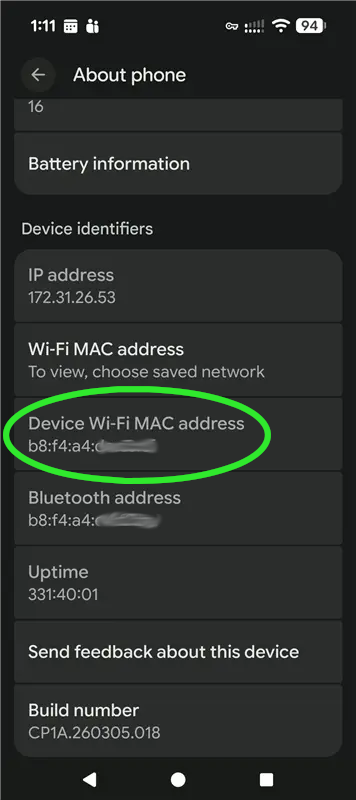
Find your device's 12 digit MAC address, similar to what's in the green ellipse above.
iOS Devices
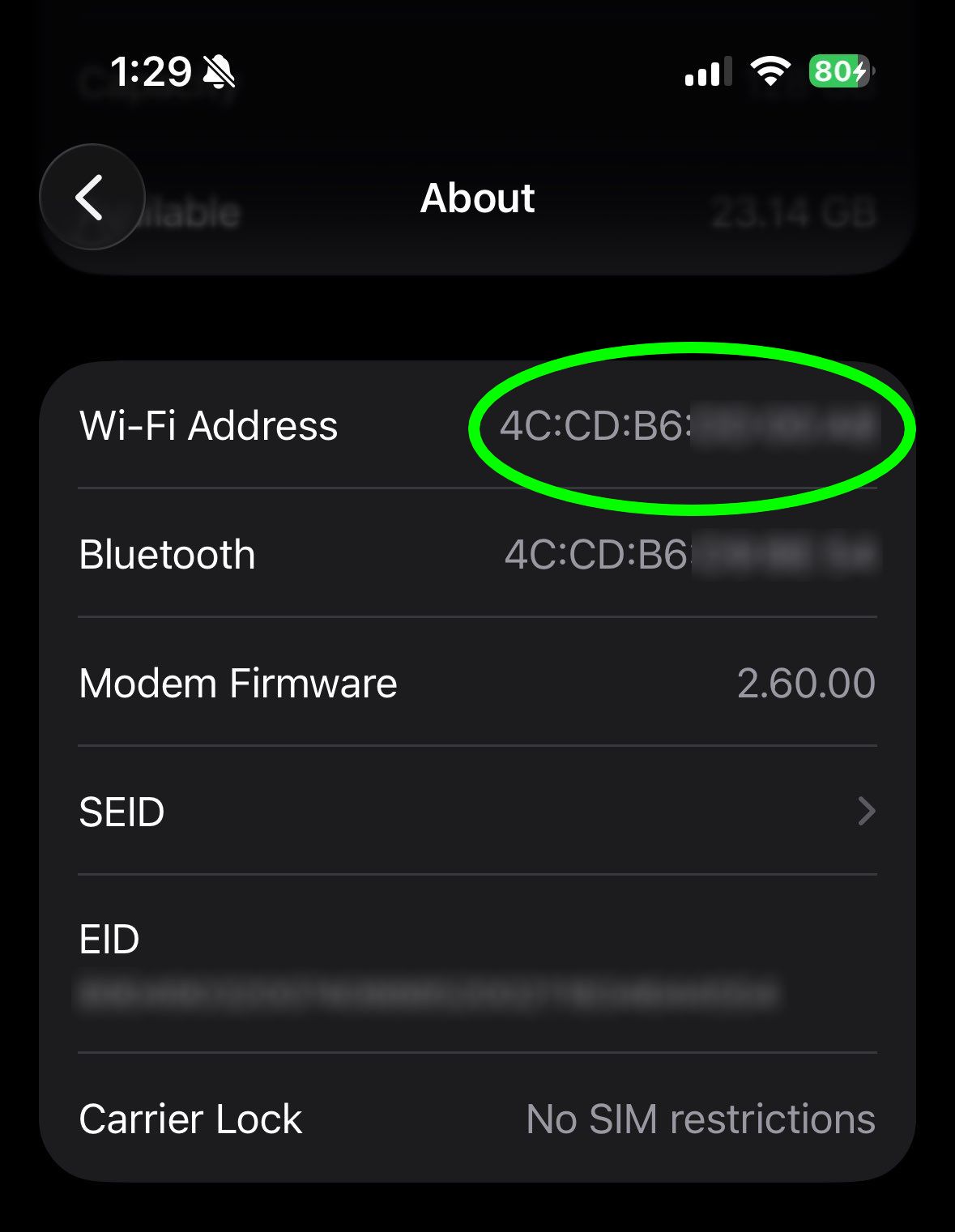
Go to Settings > General > About
iPhone
iPad
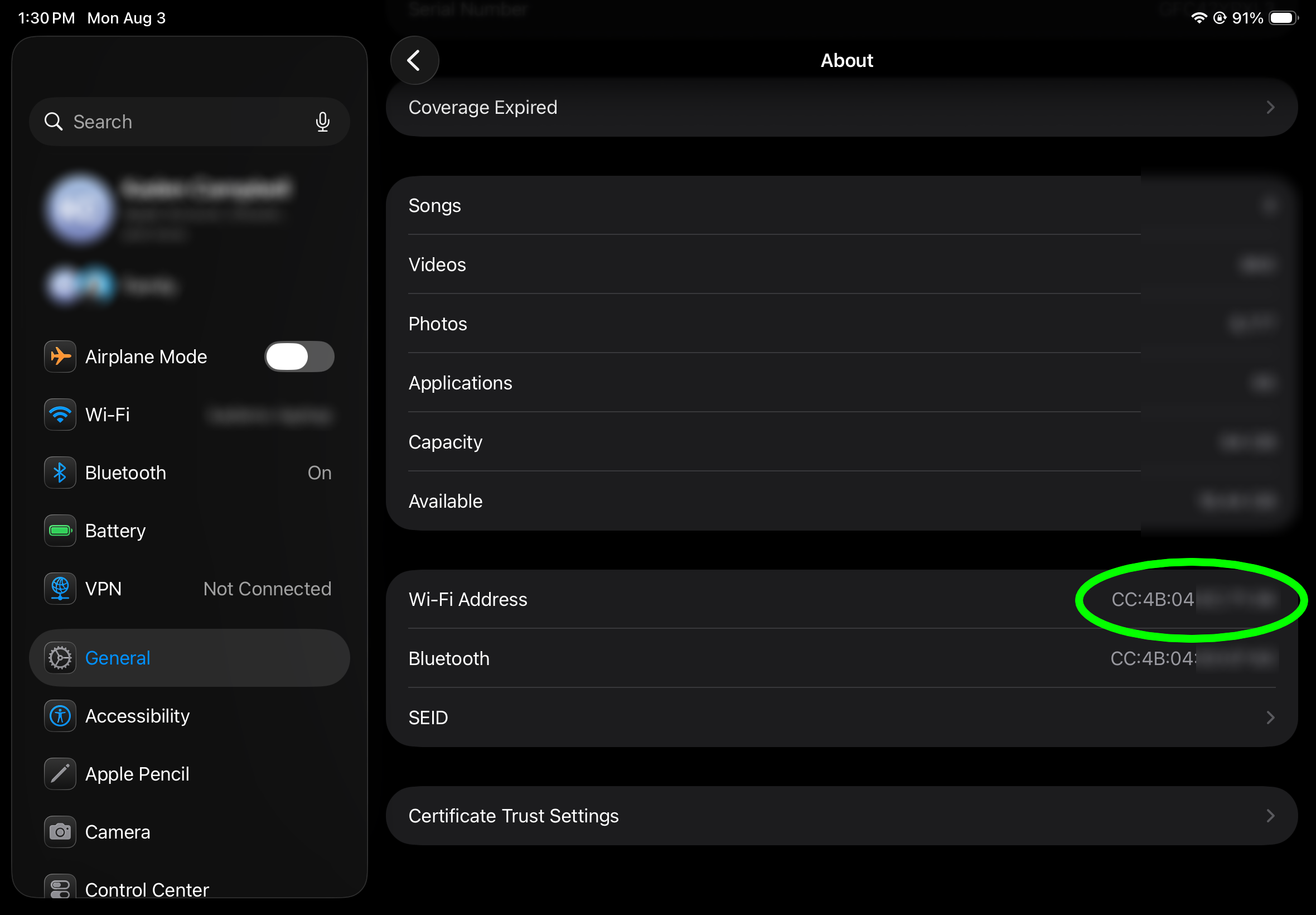
Find your device's 12 digit MAC address, similar to what's in the green ellipse above.
Amazon Fire Stick
Apple TV
Go to Settings > Network
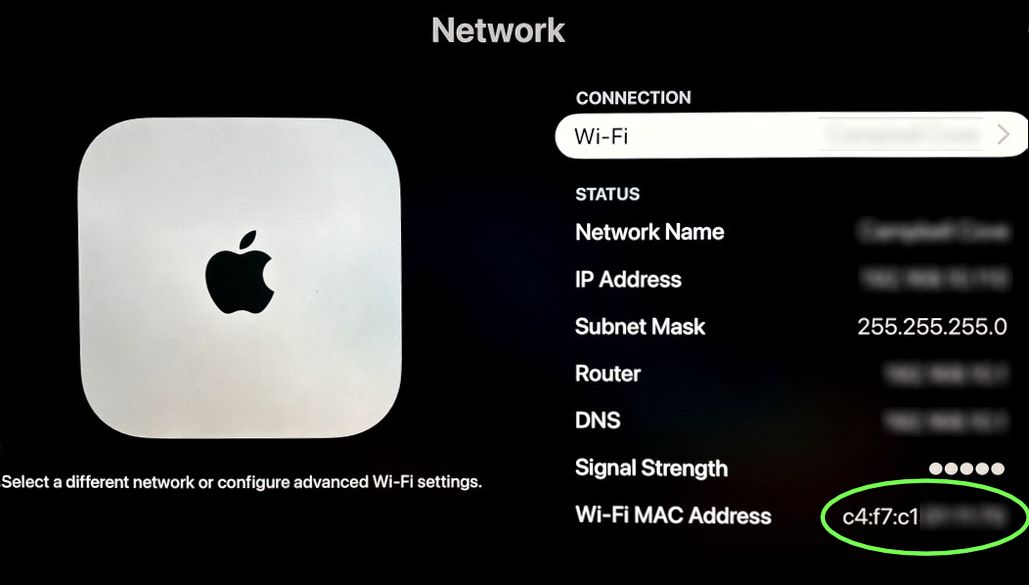
Find your device's 12 digit MAC address, similar to what's in the green ellipse above.
Google / Android TV
Go to Settings > System > About > Status
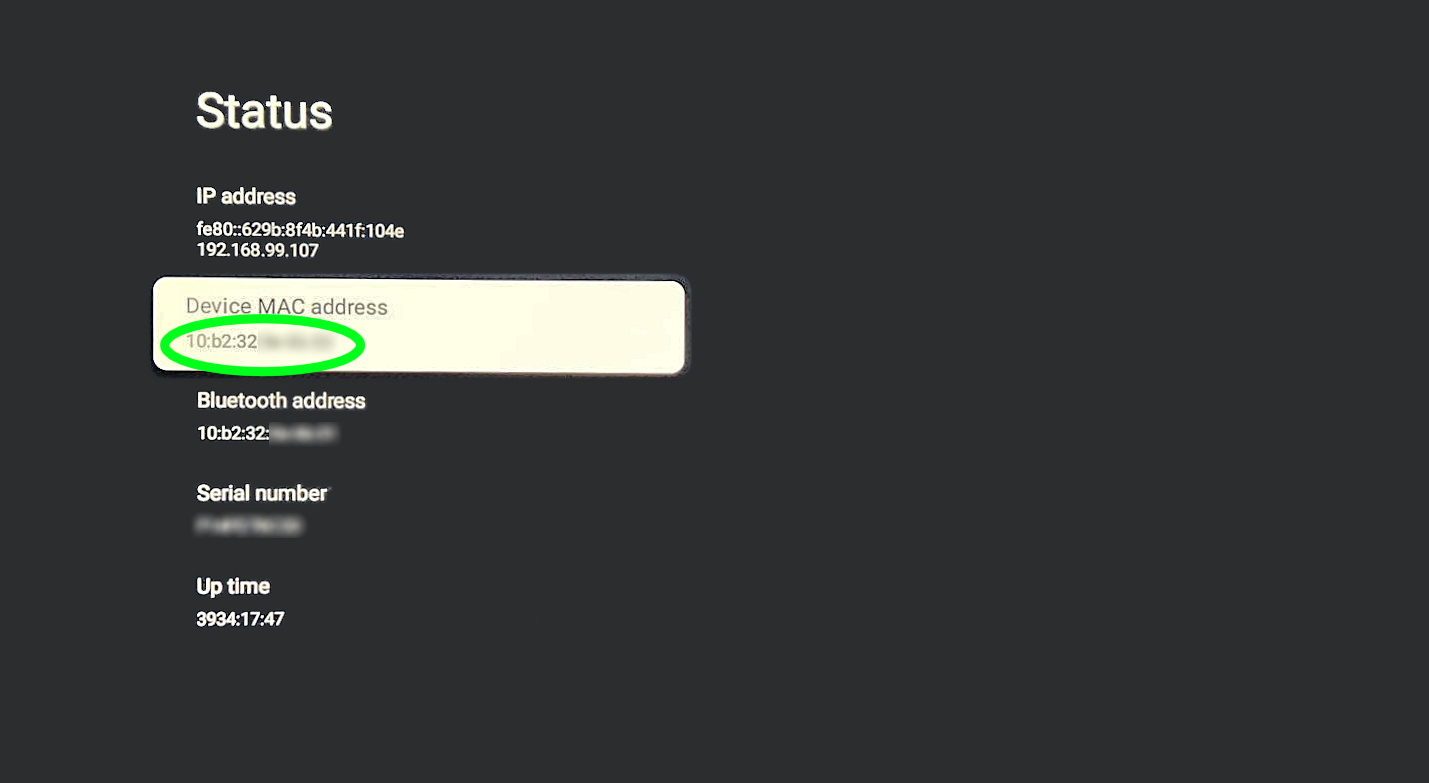
Find your device's 12 digit MAC address, similar to what's in the green ellipse above.
Roku
Go to Settings > Network > About
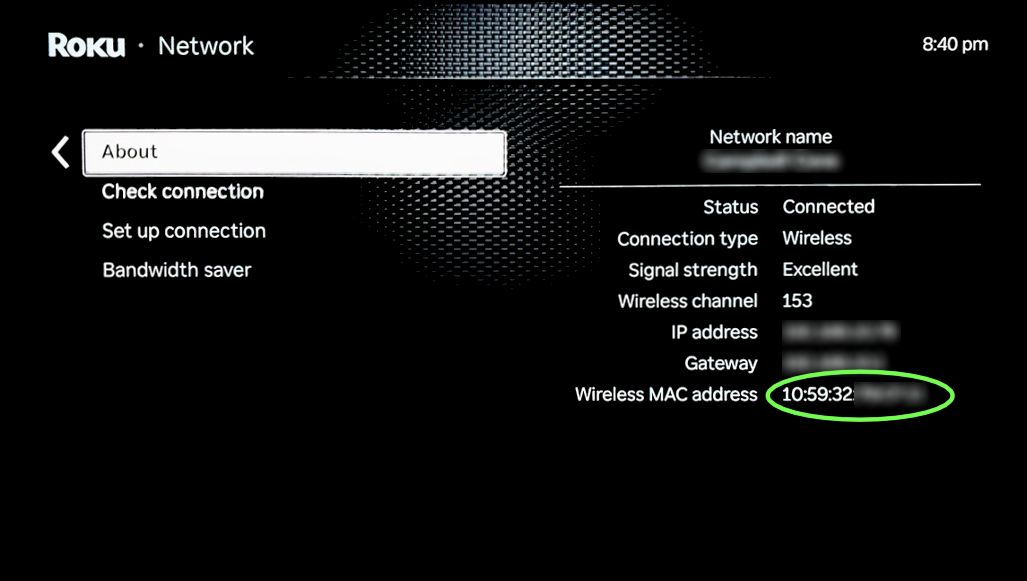
Find your device's 12 digit MAC address, similar to what's in the green ellipse above.
Playstation
Playstation 4
Select Settings on the main menu.
Select Network.
Select View Connection Status.
Locate MAC Address (WiFi)
Playstation 5
From the Playstation Home screen, select Settings in the upper right.
Select System.
Select System Software.
Select Console Information.
The MAC address will be listed by MAC Address (Wi-Fi).
Xbox
Xbox One
Go to My Xbox in the Xbox dashboard and select Settings.
In the Settings pane, select Network.
Select Advanced Settings from the Network Settings tab.
At the bottom of this screen, you'll see a heading for Wireless MAC.
Xbox Series X/S
On the Xbox controller, press the Xbox button.
From the Profile & System menu, select Settings.
From the General section, select Network Settings.
Select Advanced Settings.
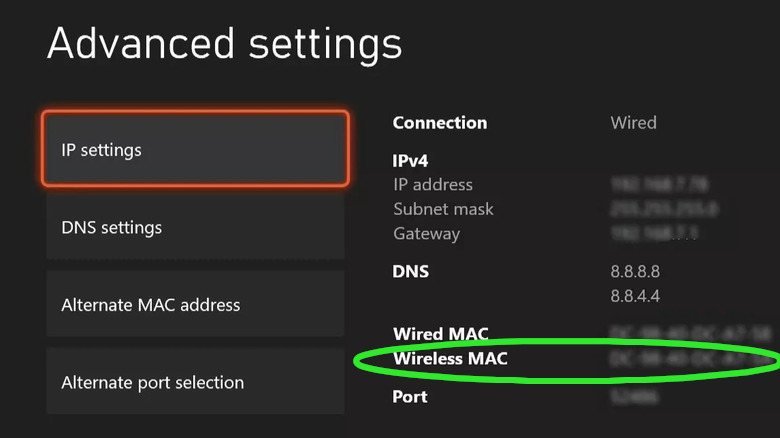
On the IP Settings menu, the wireless MAC address will be listed by Wireless MAC, similar to the green ellipse above.
Nintendo Switch / 2
Select System Settings from the HOME Menu.
Scroll down through the menu and select Internet.
The Nintendo Switch console's MAC address will be listed under System MAC Address.
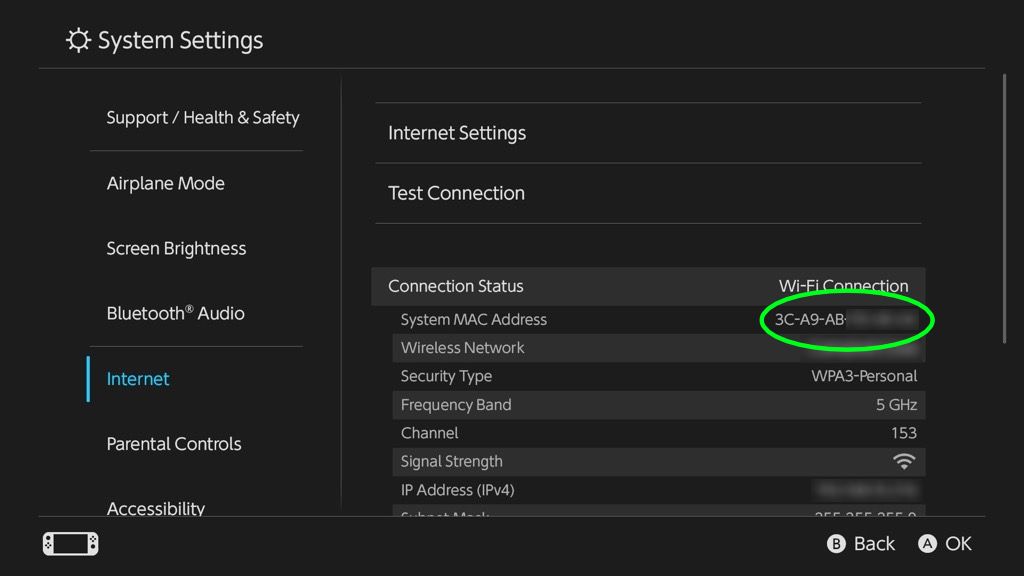
Find your device's 12 digit MAC address, similar to what's in the green ellipse above.
Smart Speakers
Google Home Speaker
Amazon Echo
Apple HomePod

