


Summary
On Tuesday, December 15, 2026, IT will remove the legacy Google Drive tool (Google Apps LTI 1.1) from Canvas. After that date, any Google content added with the legacy tool will stop working in Canvas. Your Google files themselves are not affected; they stay in your Google Drive.
The replacement tools, Google Drive (LTI 1.3) and Google Assignments (LTI 1.3), are already installed in every Utah Tech Canvas course. They do everything the legacy tool did. Instructure and Google stopped developing the legacy tool, and Google recommends that all users move to the LTI 1.3 version (Google: Use Assignments LTI with Canvas).
Who needs to act: instructors and UT Online designers with Spring 2027 courses, Blueprint courses, or older courses they plan to copy content from. Spring classes begin January 11, 2027.
What does not need action: concluded courses. Legacy content in past courses will stop displaying after December 15, and that is expected.
How to tell if your course uses the legacy tool
To check a course, look for these signs:
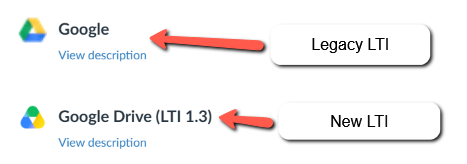
- In the Rich Content Editor: the legacy tool appears in the Apps menu as Google Drive or Google. The new tool always shows (LTI 1.3) in its name.
- In Modules: open any Google item. If it was added with the legacy tool, the External Tool name will not include (LTI 1.3).
- In Assignments: a submission type of External Tool using Google Drive Cloud Assignment is the legacy tool. The new option is Google Assignments (LTI 1.3).
- In Collaborations: collaborations created with Google Apps use the legacy tool.
Not sure? Email IT Instructional Services at [email protected] and we can check your course for you.
Replace an embedded Google Doc (most common)
Most Utah Tech instructors use the legacy tool to show a Google Doc within a Canvas page or assignment. To replace it, delete the old embed and add the same file again with Google Drive (LTI 1.3). This works in any tool that uses the Rich Content Editor: Pages, Assignments, Discussions, Announcements, and Quizzes.
- Open the page or assignment and click Edit.
- Click the old Google embed and delete it.
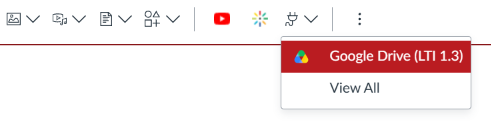
- In the toolbar, click the Apps icon (plug icon), then choose Google Drive (LTI 1.3). If you don't see it, click View All and search for it.
- Sign in with your Utah Tech Google account and click Allow if prompted. You only do this the first time.
- Click Select file, find your file, and click Add.
- Choose Embed to display the file in the page, or Link to show a clickable link.
- Click Save.
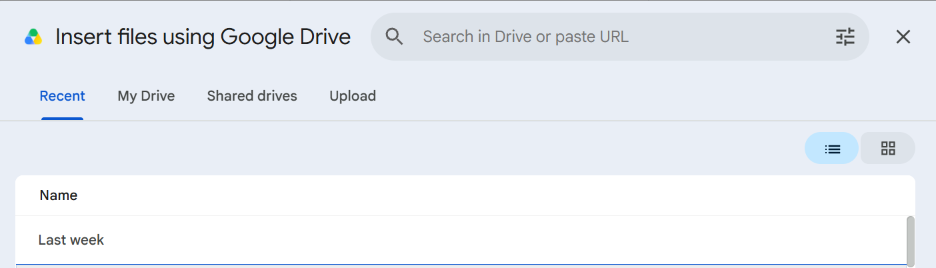
Important: Adding a file this way changes its Google sharing setting to Anyone with the link can view. Students can view the file but cannot edit it. Don't use this method for files containing private or student information.
Simpler option: If you only need students to open the document, you can paste the file's share link into the page as a regular hyperlink. Set the file's sharing in Google Drive first so Utah Tech students can view it.
Instructure guide: How do I embed a file from Google Drive into the Rich Content Editor?
Other places to update
Google files in Modules
- In Modules, delete the old Google item (or note its position).
- Click the + (Add Item) button on the module.
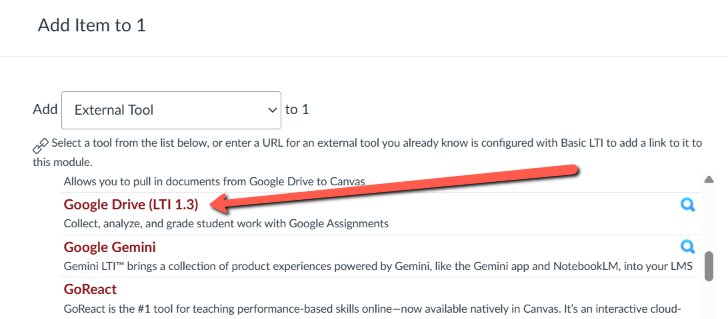
- In the Add drop-down, choose External Tool.
- Select Google Drive (LTI 1.3), pick your file, and click Add Item.
- Drag the new item into place and publish it.
Google guide: Add a Drive file to a Module
Google Drive Cloud Assignments
Assignments built with the legacy Google Drive Cloud Assignment option must be recreated with Google Assignments (LTI 1.3). Note that "Google Drive Cloud Assignment" is the old option, even though its name sounds similar.
- Edit the assignment and set Submission Type to External Tool.
- Click Find and select Google Assignments (LTI 1.3).
- Sign in with your Utah Tech Google account, then attach your Drive files.
- Save and publish.
If students have already submitted to a legacy assignment this semester, leave it alone until grades are final.
Instructure guide: How do I create an assignment using Google Assignments LTI 1.3?
Google guide: Use Assignments LTI with Canvas
Collaborations
Create new collaborations with Google Drive (LTI 1.3) instead of Google Apps. One difference: for a class-wide collaboration you select individual students rather than the whole class at once. Collaborations inside Canvas Groups work the same as before.
Student submissions
Students can still submit Google Drive files. When Google Drive is an allowed submission option, they will see Google Drive (LTI 1.3) on the submission page. No instructor action is needed.
Blueprint courses and copied content
Legacy Google content copies along with everything else, so it can show up in new courses long after December 15.
- Blueprint courses: update the Google content in the Blueprint, then sync. Fixing only the associated sections means the old content returns on the next sync.
- Copying from older courses: after importing content from a past semester, check every Google item using the signs in "How to tell if your course uses the legacy tool." Replace any legacy items before students arrive.
- Course shells you reuse each term: update the master copy once so future copies are clean.
Resources and questions
Instructure guides
- How do I embed a file from Google Drive into the Rich Content Editor?
- How do I create an assignment using Google Assignments LTI 1.3 as an instructor?
- How do I upload a file from Google Drive as an assignment submission? (student)
Google guide
- Use Assignments LTI with Canvas: embedding files, adding files to Modules, creating assignments, and copying assignments from the legacy tool
Questions? Contact IT Instructional Services at [email protected]. We can check your courses, help with Blueprint updates, or walk you through the steps.

