


As Utah Tech transitions from Proctorio to Honorlock, some copied or imported courses may still contain old Proctorio iCards embedded in quiz instructions. These leftover cards can confuse students and should be removed before the course is published.
This article explains how instructors can safely remove old Proctorio content without affecting Honorlock functionality.
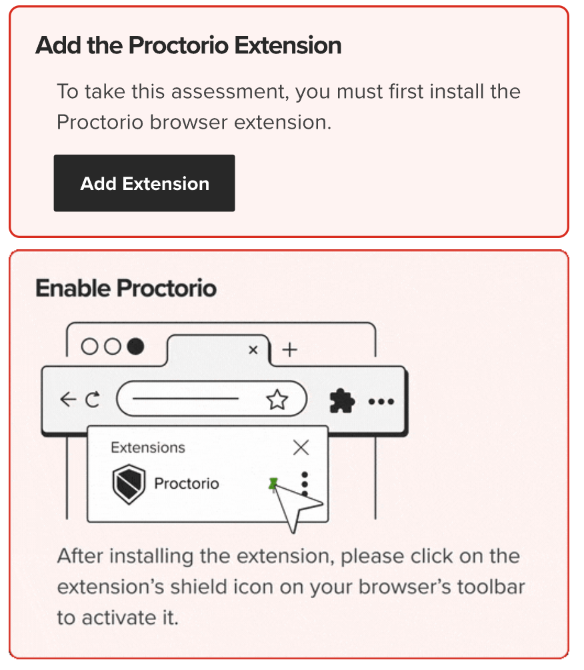
Symptoms
You may notice:
- A Proctorio banner or embedded card inside quiz instructions
- Old Proctorio setup instructions appearing above or below quiz directions
- Broken or blank embedded content after course copy/import
- References to Proctorio in quizzes even though Honorlock is now being used
How to Remove Proctorio iCards
Option 1 — Remove the Embedded Card in the Rich Content Editor
- Open your Canvas course.
- Navigate to Quizzes.
- Select the quiz containing the old Proctorio content.
- Click Edit.
- In the Quiz Instructions area:
- Click directly on the Proctorio card or embedded content.
- Press Delete or Backspace on your keyboard.
- Review the remaining instructions to ensure all Proctorio references are removed.
- Click Save.
Option 2 — Remove Proctorio HTML Code
Sometimes the embedded iCard cannot be removed normally because hidden HTML remains in the page.
- Open the quiz and click Edit.
- In the Rich Content Editor, select HTML Editor (
</>or “Code View”). - Look for Proctorio-specific code or references such as:
proctoriosecureexamproctorio.com- Proctorio-specific script blocks or embedded cards
- Delete only the Proctorio-related code.
- Click Save.
Important: Do not remove all
<iframe>elements. Honorlock and other Canvas tools may also use iframes for legitimate functionality.
Example of Proctorio Code
You may see code similar to:
<iframe src="https://proctorio.com/..."></iframe>or
<div class="proctorio-card">...</div>Delete only the sections specifically referencing Proctorio.
After Removing Proctorio Content
After cleanup, instructors should:
- Add updated Honorlock instructions if needed
- Verify Honorlock is enabled for the quiz
- Preview the quiz as a student to confirm instructions display correctly
Recommended Best Practice
When copying older courses into a new semester shell:
- Review all quiz instructions before publishing
- Remove outdated proctoring references
- Replace Proctorio directions with current Honorlock guidance
Need Help?
If you continue experiencing issues removing old Proctorio content, contact the Utah Tech IT Help Desk or Instructional Support team for assistance.

