


About ResidentLife
We're excited to announce some improvements to Wi-Fi services in Campus Housing areas. As of August 2026, the UTconsole network has been retired for use in housing areas and has been replaced with a new Wi-Fi network called ResidentLife. This Wi-Fi network access is available in all UT Housing and Residential Life facilities and many nearby outdoor areas.
New changes and benefits of the ResidentLife network include:
- A personalized Wi-Fi password just for you and all your devices
- Devices connected under your password can communicate with each other (e.g. Casting and Apple sharing)
- A streamlined device registration process
- Upgraded Wi-Fi equipment
For Game Consoles and Streaming Devices
ResidentLife is primarily for use with devices that can't connect to the Trailblazers network, including, but not limited to:
- Xbox, PlayStation, Nintendo, and other game consoles
- AppleTV, Roku, Chromecast, Fire, and other streaming devices
- Smart speakers and personal assistant devices
- Any other device that supports only WPA-Personal or WPA-PSK WiFi connections
There is a two-step process to getting connected: registering your device, and configuring it to use ResidentLife. Please follow the directions below to get connected.
Phones, Tablets, or Computers
With these devices you have a choice. For devices including:
- Windows, Mac, Linux, and ChromeOS laptops
- iPad, Amazon Fire, Android, and ChromeOS tablets
- nearly all Android and iPhone mobile phones
will connect to the Trailblazers and eduroam networks regardless of whether you are in your dorm room or in any other campus buildings. This is the recommended way to set these devices up. You can also set them up to use ResidentLife if you need to cast or share with your other devices in your room, but note that ResidentLife isn't available outside of Housing areas.
To configure devices to connect to Trailblazers or eduroam, please visit the main wireless configuration page.
Connecting to ResidentLife
You must follow these steps in order, and you must register every device you want to connect to ResidentLife.
Step 1 - Register Your Device for ResidentLife - YOU MUST DO THIS FIRST
To register your device you need to find its wireless MAC address (also known as a physical network address). A MAC address is a string of 12 alphanumeric digits separated by colons or dashes that looks something like this:
a1:b2:c3:d4:e5:f6
The wireless MAC address can usually be found on a sticker or in the settings menu for your device. Refer to your device manual, online support, or contact the help desk if you have difficulty finding your device’s wireless MAC address. This article shows how to find the MAC address for many common devices. ❗Important note: If you use a device that does privacy or 'randomizes' MAC addresses, turn this feature off. Most game consoles and streaming devices don't do this, but most phones and many operating systems offer this functionality. It will cause you problems if you leave the privacy randomized MAC feature on.
- Once you know the wireless MAC address, use a phone, tablet, or laptop connected to Trailblazers to visit the Device Registration page. When prompted, log in with your Digital-ID and password. The device registration page is only available on campus. If you are using your mobile phone, make sure it's either already on the Trailblazers network or connected to UTguest at a minimum. You won't be able to use mobile data to get to this page.
- Click the ‘Register another device’ button. Enter your device MAC address in the field and click ‘Register’. You can register additional devices as needed.
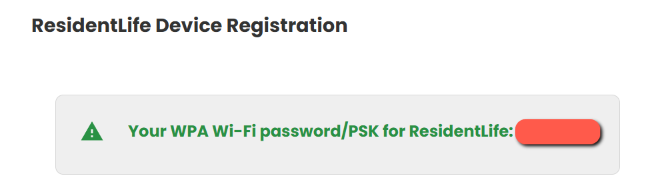
- Make note of your ResidentLife Wi-Fi password displayed on the status page. This will be the password you use to connect all of the devices registered to you. Please do not share this password, everyone has their own unique password.
Step 2 - Connect your Device to ResidentLife - DO THIS SECOND
With your device registered and your personal PSK, you will need to connect it to ResidentLife. This process is different for every device. Look for the option to connect or join a wireless network in your device’s settings menus. Refer to your device manual, online support, or the help desk if you need help figuring out how to tell your device to connect to UTconsole.
- Find and join the ResidentLife Wi-Fi network from your device’s settings menu.
- When prompted, enter the password or PSK for ResidentLife. Remember, this was displayed when you registered your device. You can go back to the Device Registration page to see it again if you forget it. Remember that you must register the MAC address of every device you want to connect to _ResidentLife. _Even if you connect a new device with your PSK, it won't actually work until you register its MAC address.
Your device should now be connected. Happy gaming and streaming. Please contact the Help Desk if you need assistance.
Step 3 - If, at any point, you connected your newly registered device to the UTguest network, tell your device to 'forget' UTguest now.
Other Things to know
- Peer-to-Peer file-sharing to get free access to movies, TV shows, music, or video games that you would otherwise have to pay for can get you into legal trouble. Please review the Peer to Peer and Copyright Infringements section of UT’s Right to Know disclosures.
- Please do not connect your own wireless routers or access points to the wired network in campus housing buildings. This impacts the wireless experience for others around you and is prohibited by UT policy. UT Network Services reserves the right to disconnect personal devices that violate UT policies from the network.

